 blog
blog
Hybrid Meeting Room Setup: Essential Checklist for 2026
Table of Contents
- What Makes a Hybrid Meeting Room Actually Work
- Hybrid Meeting Room Equipment Checklist: The Core AV Stack
- Hybrid Meeting Camera Placement: Getting the Angle Right
- Hybrid Meeting Room Microphone Setup for Clear Audio
- Internet, Network Infrastructure, and Wireless Presentation
- Hybrid Meeting Pre-Meeting Checklist: Test Before You Meet
- Room Layout, Acoustics, and Accessibility
- Security, Privacy, and Device Management
- Frequently Asked Questions
Last Updated: October 12, 2026
What Makes a Hybrid Meeting Room Actually Work
A hybrid meeting room works when remote and in-room participants can see, hear, and share with each other without friction. That sounds simple. In practice, most rooms fail at one of those three points, and the meeting suffers for it.
This guide from Third Space Coffee breaks down the essential checklist for hybrid meeting room setups, from cameras and microphones to network gear and room layout. We have watched teams book our space for meetings and events, and we have seen which setups hold up under real use.
The core idea: treat the room as a system, not a shopping list. Every piece has to connect, and every person has to feel present.
Hybrid Meeting Room Equipment Checklist: The Core AV Stack
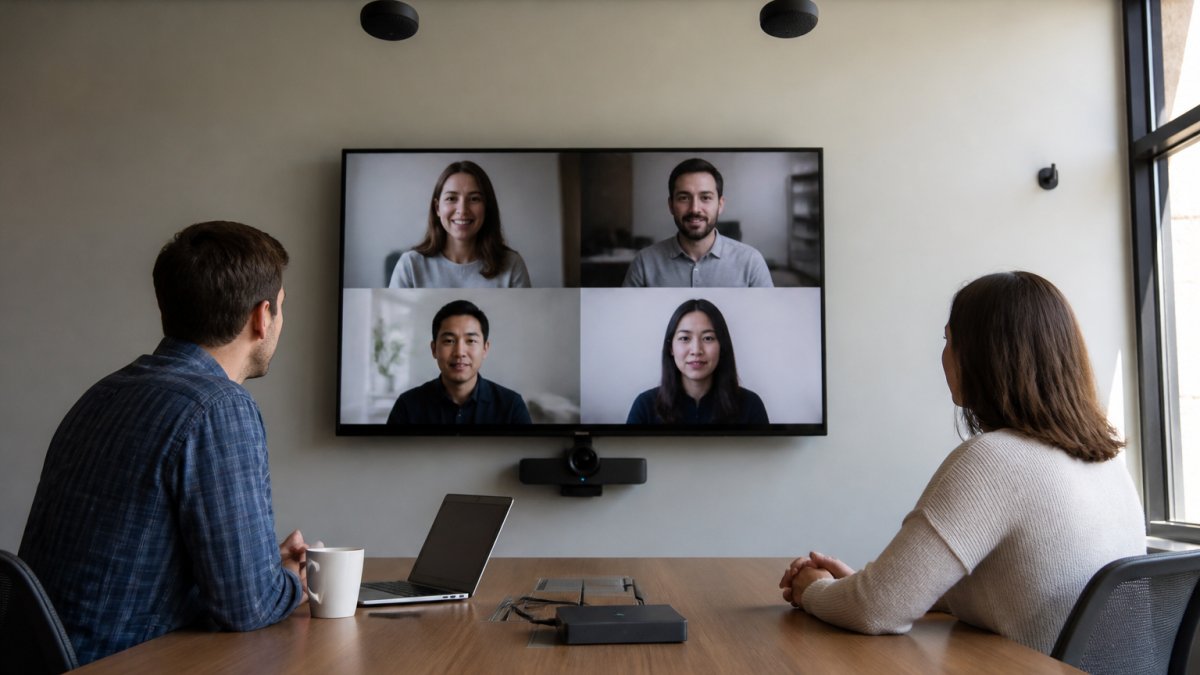
The core AV stack for a hybrid meeting room has four parts: a camera, microphones, speakers, and a display. Get these right and everything else gets easier.
Cameras and Video Quality
A conference room camera should show every person at the table, not just the ones near the screen. Look for a wide field of view and 1080p resolution at minimum. A PTZ camera, which can pan, tilt, and zoom, helps in larger rooms where one fixed angle misses people.
Microphones and Room Audio Pickup
Microphone pickup decides whether remote guests hear everyone or just the loudest talker. Ceiling or table microphones with beamforming focus on voices and cut background noise. In small rooms, a good USB speakerphone often covers the whole table.
Speakers, Displays, and Projectors
Speakers should fill the room without echo. A soundbar or ceiling speakers usually beat the built-in TV audio. For displays, most rooms do well with a large screen; a projector suits very wide rooms where sightlines from the back matter.
| Room Size | Camera | Microphone | Display |
|---|---|---|---|
| Small (up to 6 seats) | All-in-one USB bar | Built-in mic array | 55-inch screen |
| Medium (6-12 seats) | PTZ camera | Ceiling mic array | 65-75-inch screen |
| Large (12+ seats) | Dual camera | Table + ceiling mics | Dual screens or projector |
Hybrid Meeting Camera Placement: Getting the Angle Right
Camera placement should put the lens at eye level, roughly at the center of the table. This keeps faces in view and avoids the "looking up at chins" problem that makes remote guests feel like spectators.
Mount the camera below or above the display, close to where people look during the call. In long rooms, a second camera helps. One camera cannot capture a 20-foot table without making everyone tiny.
Avoid pointing the camera at a bright window or a busy hallway. Backlight washes out faces, and foot traffic distracts remote participants.
Hybrid Meeting Room Microphone Setup for Clear Audio
Microphone setup starts with coverage, not volume. The goal is to pick up every voice at a natural level while rejecting room noise.
A few rules that hold up in practice:
- Keep microphones at least 3 feet from speakers to avoid echo
- Use ceiling mics for large tables, table mics for smaller ones
- Mute unused mics when only one person is talking
- Add a DSP unit to handle echo cancellation and noise gating
What most guides miss is that audio matters more than video. People forgive a soft image. They will not forgive a meeting where half the sentences drop out.
Internet, Network Infrastructure, and Wireless Presentation
Network reliability decides whether the whole setup works on meeting day. A dropped call ruins a hybrid session faster than any camera issue.
Wired connections beat wireless for the main room system. Run an Ethernet cable to the codec or PC when you can. For guest laptops, reserve a separate Wi-Fi network so personal devices do not compete with the video stream.
For content sharing, look for these features:
- Wireless presentation with a simple code or tap-to-join
- USB-C connection for one-cable video and power
- HDMI backup for older laptops
- Support for the conferencing software your team already uses
Device compatibility matters here. Test the room with the laptops, tablets, and phones your team actually brings.
Hybrid Meeting Pre-Meeting Checklist: Test Before You Meet
A pre-meeting checklist catches problems before they embarrass anyone. Run it 10 minutes before the call starts.
- Camera on and framed on the table
- Microphone levels checked with a test sentence
- Speakers on and volume set
- Display showing the right input
- Internet speed tested and stable
- Conferencing software logged in
- Screen sharing tested from a guest device
- Room lights on and blinds set
This is the step most teams skip. It is also the one that saves the most meetings.
Room Layout, Acoustics, and Accessibility
Layout, acoustics, and accessibility decide whether the AV gear you bought actually performs. A great camera in an echo-heavy room still produces a bad meeting. This section gives you measurable targets and a room-size decision framework so you can specify the room, not just the equipment.
Room-Size Decision Matrix
Use room dimensions and seat count together. Seat count alone hides the long, narrow rooms that break camera coverage.
| Room Type | Typical Dimensions | Seats | Camera Coverage | Mic Pickup Target | Display Size |
|---|---|---|---|---|---|
| Huddle | up to 12 ft x 12 ft | 2-4 | Single wide-angle, 90°+ FOV | One tabletop or bar mic | 43-55 in |
| Small | up to 16 ft x 20 ft | 5-8 | Single PTZ or wide bar | One ceiling array or bar mic | 55-65 in |
| Medium | up to 20 ft x 30 ft | 9-14 | PTZ with presets | Two ceiling arrays or table mics | 65-75 in |
| Large | over 20 ft x 30 ft | 15+ | Dual camera or camera + speaker-tracking | Distributed ceiling arrays | Dual 75 in or projector |
Rule of thumb for display size: the farthest viewer should sit no more than about 6 times the screen's diagonal height from the display for comfortable reading of shared content. A 65-inch 16:9 screen is roughly 32 inches tall, so the back row should be within about 16 feet. Beyond that, move to a larger screen or a projector.
Rule of thumb for camera coverage: a single camera should not have to cover a table longer than about 20 feet. Past that, faces at the far end shrink to the point remote participants cannot read expressions. Add a second camera or a speaker-tracking camera.
Measurable Acoustic Targets
Acoustics are not subjective. You can measure them.
- Reverberation time (RT60): the time it takes sound to decay 60 dB. For speech in a small to medium conference room, aim for roughly 0.4-0.6 seconds. Hard, empty rooms often run 1.0 second or more, which is why remote guests hear a hollow, smeared sound.
- Background noise: aim for a noise floor around NC-30 to NC-35 (Noise Criteria). HVAC rumble, projector fans, and adjacent-room bleed push rooms above this and force microphones to work harder.
- Signal-to-noise ratio: keep speech at least 15 dB above the room's noise floor at the microphone. If you cannot hit that, treat the noise source before adding more mics.
Practical Acoustic Treatment
- Add soft surfaces where sound reflects: area rugs, fabric chairs, curtains, and acoustic panels on the wall behind the talkers and opposite the display.
- Keep microphones away from HVAC vents and from the display's speakers. A mic within a few feet of a speaker invites echo.
- Place ceiling mics over the table, not over the walkway. Pickup should favor the seats, not the door.
- In glass-walled rooms, expect strong reflections. A single wall of acoustic panels often makes the largest difference.
Accessibility and Inclusive Participation
Accessibility is not a separate checklist. It is part of the room's acceptance criteria.
- Captions: enable live captions in the conferencing app by default, and confirm they render on the room display, not just on remote participants' screens.
- Assistive listening: for larger rooms, provide a hearing-loop or a streamed audio option so participants with hearing aids can receive room audio directly.
- Sightlines: every seat should have an unobstructed view of the display and of the camera's field of view. A seat outside the camera frame is a seat that cannot participate.
- Microphone reach: every seat must be within pickup range of at least one microphone. If a seat is outside pickup, it is not a usable seat for hybrid meetings.
- Clear paths: keep at least 36 inches of clear width on accessible routes to seats, and leave turning space at the table for wheelchairs and walkers.
- Turn-taking: use a raised-hand or queue feature in the conferencing app so remote participants are not talked over by the room. Equitable turn-taking is a layout and process decision, not just a software setting.
Security, Privacy, and Device Management
Security and device management protect the room and the people in it. A shared meeting space needs clear rules for who can join and what gets recorded.
Keep firmware updated on cameras, mics, and displays. Change default passwords on every device. Use meeting passcodes and waiting rooms to control who enters a call.
For privacy, post a visible notice when a meeting is being recorded. Store recordings in a managed account, not on a local drive. When a device leaves the room, wipe it before it goes to the next user.
At Third Space Coffee, our meeting room rental gives teams a flexible space with reliable Wi-Fi and locally roasted coffee on hand.
Frequently Asked Questions
What equipment is needed for a hybrid meeting room?
A working hybrid meeting room needs a conference room camera with enough coverage for your largest room, ceiling or table microphones with pickup that reaches every seat, speakers or a display with built-in audio, a display screen or projector for showing remote participants and shared content, a USB-C or wireless presentation connection, and high-speed internet with a backup option. Add a room scheduler and collaboration tools so remote and in-room participants join the same way.
Where should a camera be placed in a hybrid meeting room?
Place the camera at eye level, centered on the main seating area, and directly above or below the display. This gives remote participants a natural view of in-room speakers and keeps sightlines between the screen and the camera aligned. In a large meeting room or extra-large room, use a camera with wide coverage or a second camera so people at the far end are not reduced to tiny figures on screen.
How can you make sure remote attendees can hear everyone in the room?
Use ceiling microphones or a table array with enough pickup range for the room size, then test audio clarity from the back row before the meeting. Hard surfaces, background noise, and HVAC hum all degrade microphone pickup, so add acoustic treatment such as rugs, panels, or soft furniture where you can. Ask a remote participant to confirm they can hear people at the far end of the table, not just the person nearest the mic.
What internet connection do you need for a hybrid meeting?
Plan for a wired connection on the room's main system and reserve wireless connectivity for guest devices. A dedicated business-grade line with at least 10 Mbps upload per active video stream keeps video quality stable. Add a backup connection, such as a hotspot or secondary line, so a single outage does not cancel the meeting. Test network reliability before high-stakes calls, not during them.
Setting up a hybrid meeting room takes planning, but the payoff is real: remote and in-room participants who feel like they are in the same room. Third Space Coffee offers flexible meeting room rental, a versatile after-hours event space, and in-house roasted beans to keep your team fueled. Get started with Third Space Coffee and host your next meeting in a space built for connection.